Targeted Areas Resources
Lenders, REALTORS®
Central Texas Flood Resources View Now
Article
This document explains the specific steps for entering certain data for an FHA loan casefile. This document is not intended to provide detailed instructions for entering all the loan application data in Desktop Underwriter® (DU®).
Note: The maximum number of borrowers that can be entered into DU for the FHA loan casefile is four.
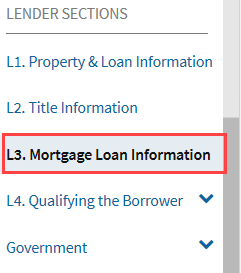
1. For the loan casefile you want to submit as an FHA loan, click section L3. Mortgage Loan Information in the navigation bar.
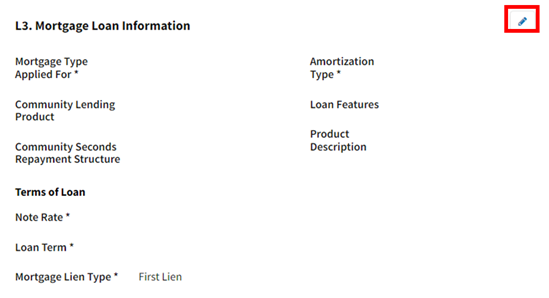
2. In the L3. Mortgage Loan Information screen, click the Edit icon.
3. From the Mortgage Type Applied For drop-down list, select FHA.
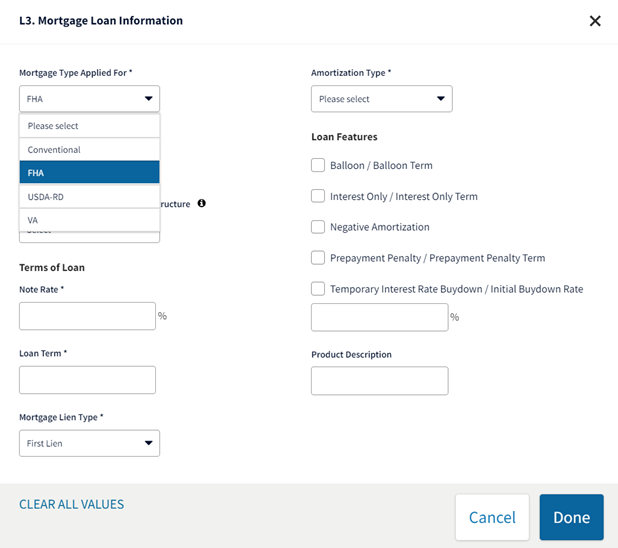
Note: The First Lien option in the Mortgage Lien Type drop-down list is the only one supported for FHA loan casefiles. Also, the Balloon, Interest Only, and Negative Amortization loan features are not allowed on FHA loan casefiles.
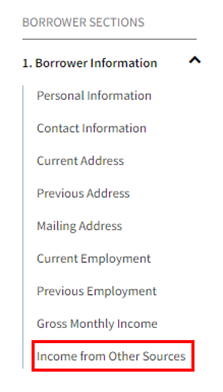
4. If there is a Mortgage Credit Certification and it needs to be shown as income based on FHA policy, enter it as an income type. Expand section 1. Borrower Information in the navigation bar and click Income from Other Sources.
5. In the 1e. Income from Other Sources screen, click the Edit icon.
6. From the Income Source drop-down list, select Mortgage Credit Certificate and enter the monthly amount.
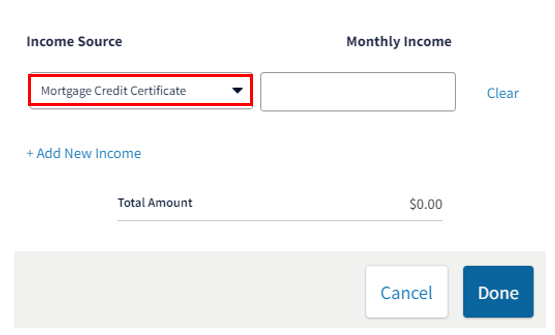
If the Mortgage Credit Certification (MCC) needs to be deducted from the housing expenses based on FHA policy, enter it on the first screen in the FHA and VA Loans section (see steps 26 through 28 below).
Note: The following income types are used for conventional loans only and in most cases result in an error if selected and in all cases the income amount is not used in underwriting: Accessory Unit Income, Capital Gains, Employment Related Account, Housing Allowance, Housing Choice Voucher Program, Non-Borrower Household Income, Public Assistance, Royalties, Separate Maintenance, Temporary Leave, and Tip Income. In addition, Foreign Income and Seasonal income, which are entered in section 1b. Current Employment/Self Employment and Income, will result in an error.
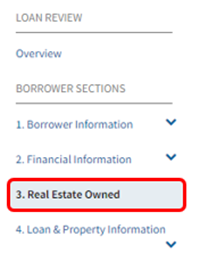
7. If the borrower owns real estate, select 3. Real Estate Owned to add those properties to the loan application.
8. In Section 3: Real Estate Owned, click ADD PROPERTY.
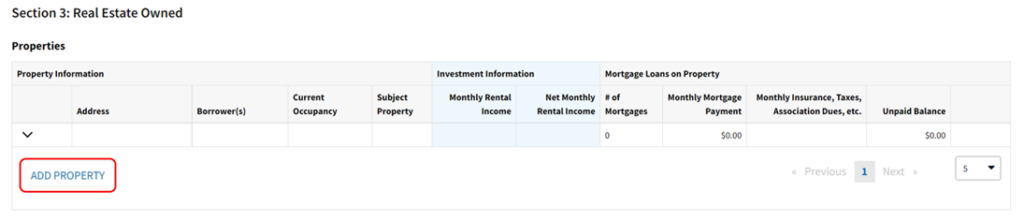
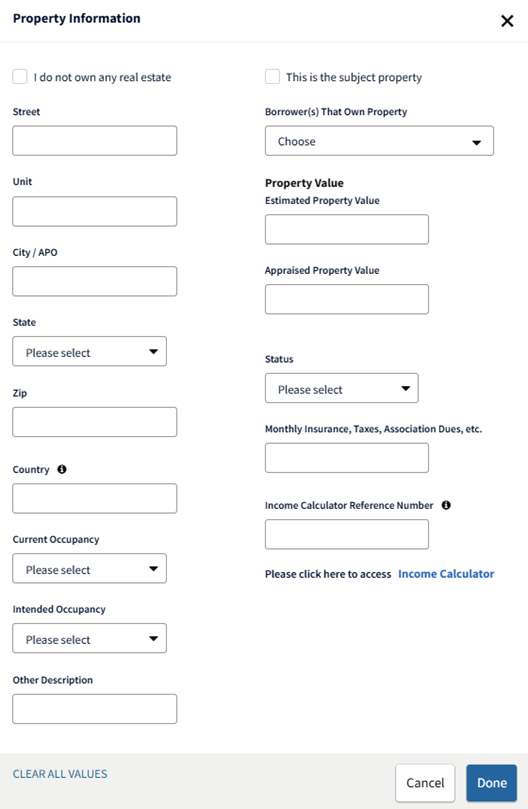
9. The section will expand. Click the Edit icon next to Property Information.
10. Complete the applicable fields in the Property Information screen:
Once you have finished entering the applicable data, click Done.
11. Click the Edit icon next to Mortgage Loans on Property.
12. Enter the editable information for the mortgage(s) and/or HELOC(s). If the existing mortgage loan is an FHA loan, select FHA in the Type (FHA only) drop-down list.
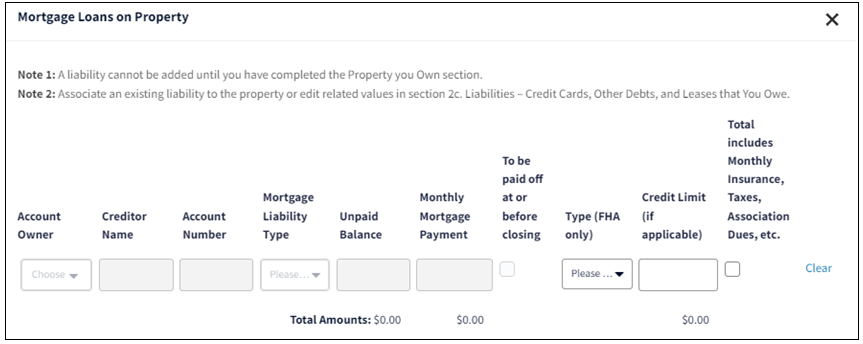
Note: Most of the fields on this screen can only be entered and/or edited on the 2c. Liabilities – Credit Cards, Other Debts, and Leases that You Owe screen.
13. If there is a rental income associated to the property, click the Edit icon next to For 2-4 Unit Primary or Investment Property Only to enter the applicable data. Refer to the Navigating Loan Application Fields job aid for additional information about entering rental income.
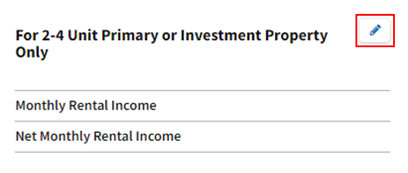
14. If there are additional Real Estate Owned properties, repeat steps 8 through 13.
Note: If the transaction is a refinance, the subject property should be entered first.
15. Click section 4. Loan & Property Information in the navigation bar.
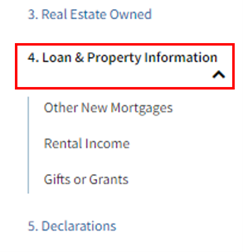
16. In the 4a. Loan and Property Information section, click the Edit icon.
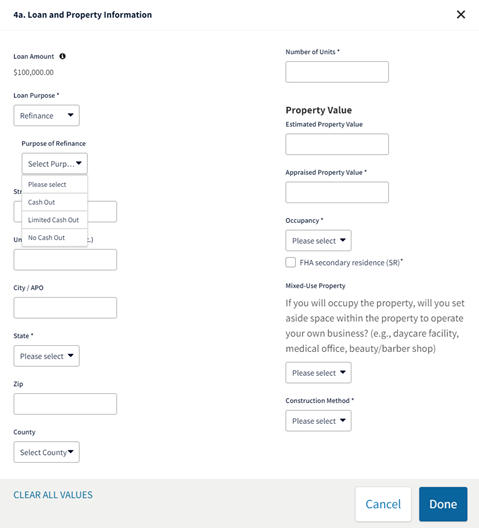
17. If a gift or grant will be used, click Gifts or Grants.
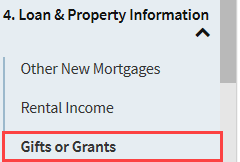
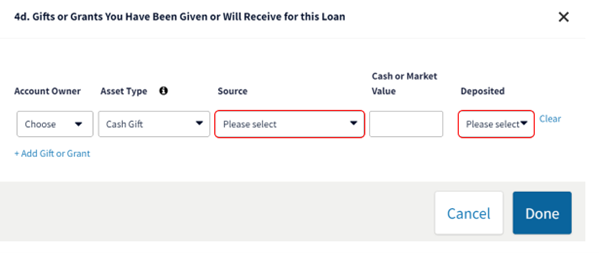
18. In the 4d. Gifts or Grants You Have Been Given or Will Receive for this Loan screen, click the Edit icon.
19. Complete the applicable fields:
Note: The full amount of the gift(s) or grant(s) needs to be entered.
20. To enter the Mortgage Insurance Premium (MIP), click section L4. Qualifying the Borrower in the navigation bar.
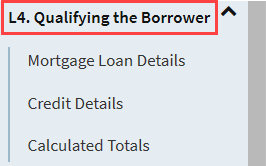
21. In the L4. Qualifying the Borrower – Minimum Required Funds or Cash Back screen, click the Edit icon.
22. Enter the entire MIP amount in the PMI, MIP, Funding Fee field.

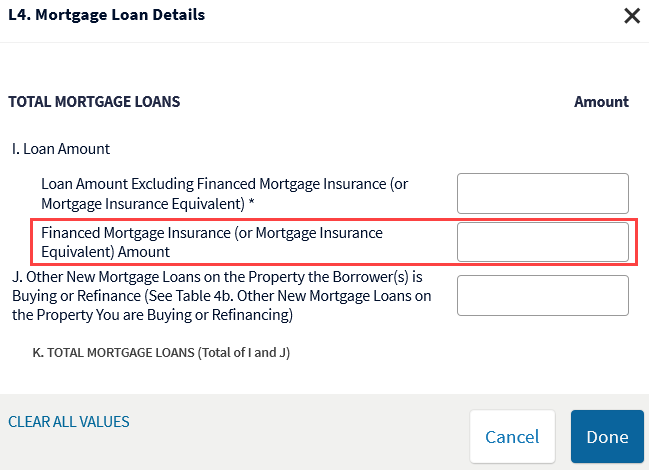
23. Expand section L4. Qualifying the Borrower in the navigation bar and click Mortgage Loan Details.
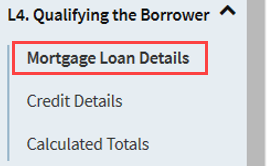
24. In the L4. Mortgage Loan Details screen, click the Edit icon.
25. Enter the amount of the MIP that will be financed in the Financed Mortgage Insurance (or Mortgage Insurance Equivalent) Amount field (the second amount field for line I.).
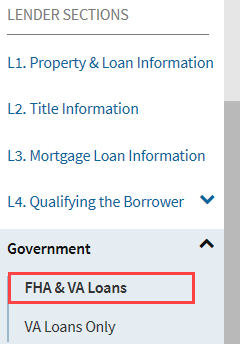
26. Expand section Government in the navigation bar and click FHA & VA Loans.
27. For the first screen in the FHA and VA Loans, click the Edit icon.
28. Complete the applicable fields:
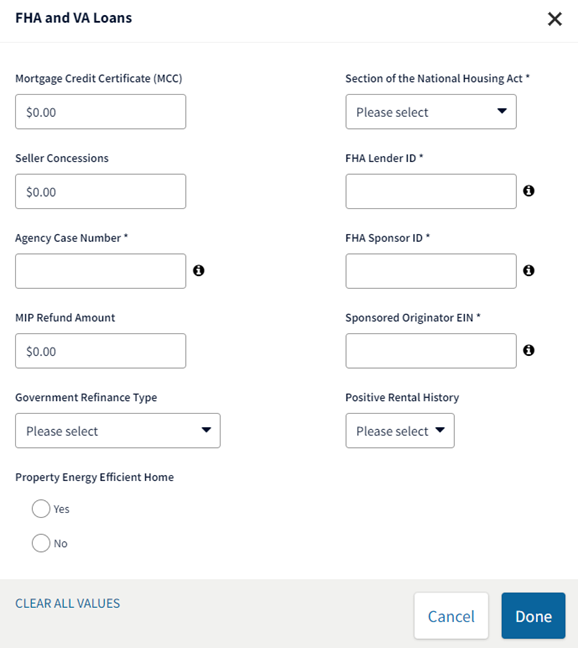
Note: The Agency Case Number field is not required to submit the loan for an underwriting recommendation; however, it is required to obtain FHA insurance. You must enter a valid FHA case number in this field, so leave it blank if you don’t have one yet. If you do not complete the Agency Case Number field, DU displays a warning message. In this case, click Done. If you do not complete the Agency Case Number, then the underwriting recommendation and findings could be inaccurate.
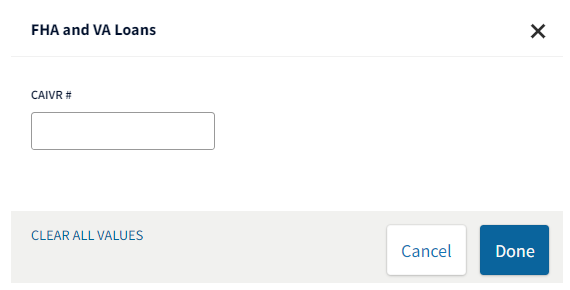
29. If you have the CAIVR number, click the Edit icon for the second screen in FHA and VA Loans.
30. Enter the CAIVR# and click Done.
Note: In addition to the values/fields mentioned in this job aid, there are some other values/fields on the redesigned Form 1003 that DU for government loans will not use, and those that may be used by DU for government loans in a future release. When existing messages are updated or new messages are added using other new fields, the details will be included in future DU for government loans release notes. As always, you must ensure full compliance with all FHA eligibility requirements and all requirements of FHA Single Family Housing Policy Handbook 4000.1.

Sign up to have TSAHC news & updates delivered to your inbox.